Cloud Costs
Google Cloud Cost Optimization Checklist: 20 Fixes, Real Prices
A Google Cloud cost optimization checklist in 30/60/90-day order, with verified November 2026 us-central1 prices for VMs, CUDs, storage, logs and egress.

In this article
- Why Google Cloud bills grow faster than the budget
- What one VM costs under each Google Cloud pricing option
- Days 1–30: see the spend and stop the obvious waste
- Days 31–60: right-size machines, storage, logs and networks
- Days 61–90: commit to the cleaned baseline and govern it
- The complete Google Cloud cost optimization checklist
- How to find what changed when the GCP bill jumps
- What about AI workloads on Google Cloud?
- When this checklist is not enough
- Next steps
- Frequently asked questions
- Sources
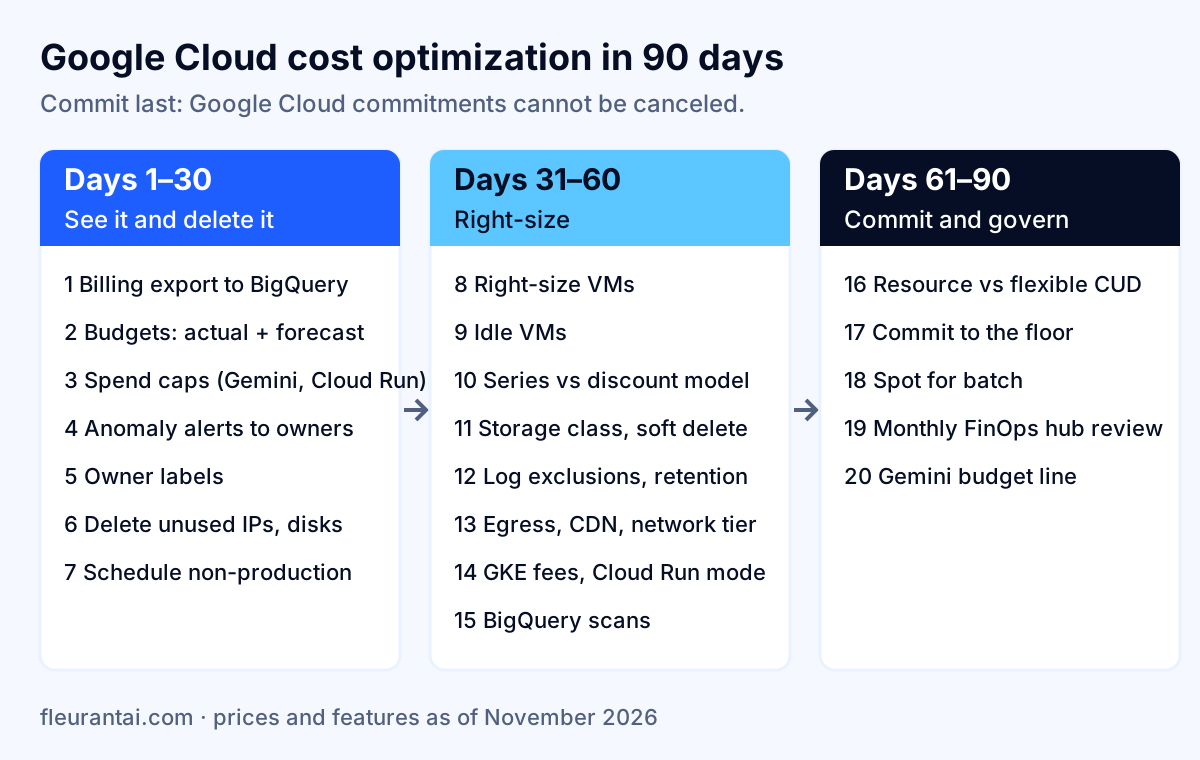
Short answer: a Google Cloud cost optimization checklist works best in a fixed order. First make the spend visible (billing export to BigQuery, budgets, anomaly alerts, labels) and delete what nobody uses. Then right-size machines, storage classes, logs and network paths. Only then buy committed use discounts, sized to the cleaned-up baseline, because Google Cloud commitments cannot be canceled. This guide gives you that order as a 90-day plan with 20 checks, each with the November 2026 list price that makes it matter, the trap that catches small teams, and the Google documentation behind it.
It is written for founders, CTOs and operations leaders at small and mid-sized US companies whose GCP bill is somewhere between a few thousand and a few hundred thousand dollars a month, and who want to know where the money goes before anyone sells them a tool. All prices are Google's list prices for the Iowa region (us-central1) as of November 2026, in US dollars, with a month counted as 730 hours. Your negotiated prices may be lower; the logic stays the same.
If you run more than one cloud, the same method appears in our Azure cost optimization checklist and our guide to why AWS bills run high.
Why Google Cloud bills grow faster than the budget
Google Cloud bills usually grow for three reasons that have nothing to do with traffic: resources nobody deletes, defaults nobody revisits, and discounts that work differently from what the team assumed. The problem is common. In Flexera's 2026 State of the Cloud survey of more than 750 cloud decision-makers, respondents estimated that 29% of their cloud spend is wasted, the first increase in five years, and 85% named managing cloud spend as a top challenge (Flexera). The FinOps Foundation's State of FinOps 2026, with 1,192 respondents, again ranks workload optimization and waste reduction as the top current priority.
On Google Cloud specifically, four mechanics explain most surprises:
- Some resources bill while "off." A stopped VM still bills for its disks, snapshots and external IP addresses (Compute Engine documentation). An unattached static IP costs more per hour than one in use.
- Discounts are not uniform. Older machine series get automatic sustained use discounts; the newer E2, N4 and C3 series do not. Moving to a "cheaper" series can raise the bill for always-on VMs.
- Defaults keep data longer than you think. Cloud Storage soft delete is on by default, and logs kept past 30 days bill monthly.
- Budgets warn, they do not stop. A standard budget only sends alerts, and cost data arrives with a delay.
Key takeaway: most of a GCP cost cleanup is not clever engineering. It is visibility, deletion and choosing the right discount for each machine series, in that order.
What one VM costs under each Google Cloud pricing option
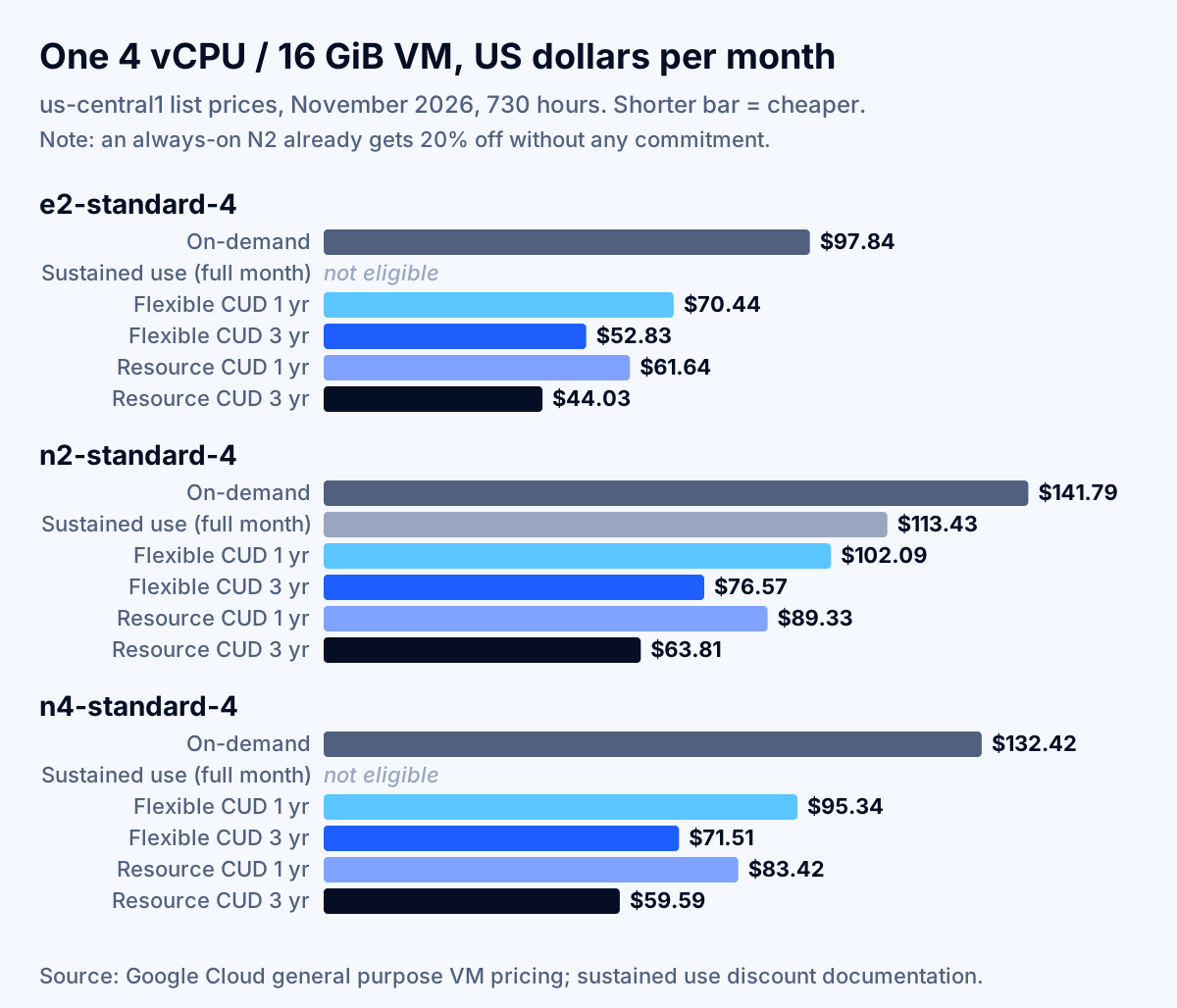
The same 4-vCPU, 16 GiB virtual machine can cost anywhere from about $44 to $142 a month in us-central1, depending on the machine series and the discount you pick. The table below uses Google's published hourly prices for three common general-purpose shapes (general purpose VM pricing), multiplied by 730 hours.
| Machine type (4 vCPU, 16 GiB) | On-demand | With full-month sustained use discount | Flexible CUD 1 year | Flexible CUD 3 years | Resource CUD 1 year | Resource CUD 3 years |
|---|---|---|---|---|---|---|
| e2-standard-4 | $97.84 | Not eligible | $70.44 | $52.83 | $61.64 | $44.03 |
| n2-standard-4 | $141.79 | $113.43 | $102.09 | $76.57 | $89.33 | $63.81 |
| n4-standard-4 | $132.42 | Not eligible | $95.34 | $71.51 | $83.42 | $59.59 |
Three things in this table change real decisions:
Sustained use discounts already cut N2 by 20%. Google applies sustained use discounts automatically to N1 (up to 30%) and to N2, N2D and C2 (up to 20%) when a VM runs the whole month; E2 and any series not on Google's list get none, and usage covered by a commitment does not get them either (sustained use discounts). So for an always-on n2-standard-4, the real comparison for a 1-year flexible commitment is $102.09 against $113.43, a saving of about 10%, not 28%.
A newer series is not automatically cheaper. An n4-standard-4 on demand ($132.42) costs more than an always-on n2-standard-4 after its sustained use discount ($113.43). If you migrate always-on VMs from N2 to N4 for performance reasons, budget for the loss of the automatic discount or pair the move with a commitment.
Resource commitments are the deepest discount, and the least flexible. Google lists resource-based commitments at up to 55% off for general-purpose series and up to 70% for memory-optimized series (committed use discounts overview), and the e2-standard-4 example shows exactly 55%. They are tied to a region and to specific vCPU and memory amounts.
Days 1–30: see the spend and stop the obvious waste
The first month is about visibility and deletion: seven checks that need no architecture change, no purchase and no outside tool. Everything here uses native Google Cloud features.
1. Export billing data to BigQuery on day one
Turn on the Cloud Billing export to BigQuery before anything else, because it is the only place you get resource-level history you can query. Google offers a standard usage cost export (services, SKUs, projects, labels, credits), a detailed usage cost export that adds resource-level rows such as individual VMs and disks, and a pricing export (billing export documentation).
The timing matters. With a US or EU multi-region dataset, the export backfills from the start of the previous month; with a regional dataset, cost data is not added retroactively at all. Loading the data is free; you pay normal BigQuery storage and query charges, and Google notes that querying the detailed export can cost more than the standard one.
2. Set budgets with alerts, and know what they do not do
Create a budget for every billing account and every production project, with alerts at 50%, 90% and 100% of actual spend and at 100% of forecast. Then tell everyone the rule Google spells out: setting an alerts-only budget "doesn't automatically cap" usage or spending (budgets documentation). There is also a reporting delay between usage and cost data, and a monthly budget keeps tracking costs for the first two days of the next month to catch late usage.
Budgets can also publish to Pub/Sub several times a day, which lets you trigger automation, such as scaling down a sandbox. Google documents programmatically disabling billing on a project as one option; that shuts down the project's paid services, so keep it for sandboxes and never wire it to production.
3. Add a spend cap where Google now supports one
Google Cloud now has real spend caps, but only for a narrow set of services. As of November 2026, a spend cap budget covers one project and one service at a time, and the eligible services are the Gemini API, Gemini Enterprise Agent Platform (formerly Vertex AI), Cloud Run and Cloud Run functions (spend cap budgets). When estimated gross cost passes 100% of the amount, new usage of that service in that project is paused until the next month or until an administrator lifts the cap. Persistent resources such as compute and storage keep billing, and enforcement is not instantaneous, so Google advises setting the cap slightly below your absolute limit.
This is worth doing for any project that calls Gemini models from an app or agent, where a loop or abuse can burn money overnight. It is not a substitute for budgets on everything else.
4. Confirm cost anomaly alerts reach a human
Cloud Billing detects cost anomalies at the project level and, by default, emails billing account administrators about every anomaly (anomaly documentation). Check who those administrators are: in many small companies it is a founder's inbox nobody reads. Add essential contacts or project owners, set a cost-impact threshold that filters out noise (Google's examples are $200 and 20%), or route alerts through Pub/Sub to chat.
Standard anomalies arrive on next-day channels. For AI workloads, Google offers early anomalies in preview with an expected latency of 20 to 40 minutes from usage. We compared detection speed across clouds in how fast AWS, Azure and GCP alert on cost anomalies.
5. Label every project and resource with an owner
Apply at least three labels to every resource that supports them: owner, environment and cost-center (or product). Labels flow into the billing export, which is what lets you answer "whose is this?" without a meeting. Enforce them in your infrastructure-as-code pipeline rather than in a wiki, and label before you need the report: cleanup decisions stall when nobody can say who owns a $900-a-month VM.
If you run many projects, a project per environment and team often gives cleaner cost boundaries than labels alone, because every Google Cloud cost already rolls up to a project.
6. Delete orphaned disks, IP addresses and snapshots
Orphaned resources are the easiest money on the bill. In us-central1, as of November 2026 (network pricing, disk pricing):
| Leftover resource | List price | Monthly cost |
|---|---|---|
| Static external IP reserved but not in use | $0.01 per hour | $7.30 each |
| Static or ephemeral IP in use on a standard VM | $0.005 per hour | $3.65 each |
| Balanced persistent disk, 500 GiB, unattached | about $0.10 per GiB-month | $50.00 |
| SSD persistent disk, 500 GiB, unattached | about $0.17 per GiB-month | $85.00 |
| Standard persistent disk, 500 GiB, unattached | about $0.04 per GiB-month (first 30 GiB-month free) | about $18.80 |
Note the inversion on IP addresses: a reserved address that is not attached to anything costs twice as much as one in use. List them with gcloud compute addresses list and look for the RESERVED status. For disks, filter the detailed billing export or the Compute Engine disk list for disks with no attached instance, snapshot anything you are unsure about, then delete.
7. Stop dev and test VMs on a schedule, and remember what still bills
A dev VM that runs 50 hours a week instead of 168 costs about 30% as much. Use instance schedules for Compute Engine, scale non-production GKE node pools to zero at night, and set Cloud Run services to scale to zero. But stopped is not free: Google states that after a VM stops you "continue to incur charges for any disks, disk snapshots, or external IP addresses" (stop and start documentation). Delete environments you will not use for weeks rather than leaving them stopped.
Days 31–60: right-size machines, storage, logs and networks
The second month moves from deleting to resizing. These checks change running workloads, so each one needs the workload owner's agreement and a rollback plan.
8. Act on machine type recommendations, carefully
Google's Recommender suggests smaller (or larger) machine types, but it looks at a short window. Machine type recommendations use Cloud Monitoring metrics from the previous 8 days, averaged over 60-second intervals; Google itself warns that infrequent spikes, such as a monthly job, may not appear, and that very brief CPU spikes can be missed (machine type recommendations). Estimates under $10 a month are not shown, and there are no recommendations for GKE nodes, Dataflow, App Engine flexible, VMs with GPUs or TPUs, or memory-optimized machines.
Install the Ops Agent on VMs you plan to resize: when it runs, Recommender uses its CPU and memory metrics, which gives more precise suggestions. Then compare each recommendation against at least 30 days of history before you resize production.
9. Shut down idle VMs the Recommender flags
Idle VM recommendations look at CPU and network use over a default 14-day window and flag VMs where monitoring agents generate most of the activity; they are regenerated daily (idle VM recommendations). They are not available for VMs with local SSDs, GPUs or TPUs, or for GKE, Dataflow and App Engine flexible resources, so check those manually. Before deleting an idle VM, snapshot its disks and message its owner label; a VM that looks idle may be a standby nobody documented.
10. Choose the machine series for the discount you will actually get
Pick the series by the pricing model, not only by the spec sheet. For always-on workloads you will not commit, an older series with sustained use discounts (N2, N2D) can beat a newer one without them, as the table above shows. For workloads you will commit for three years, E2 is the cheapest per core in the comparison ($44.03 for an e2-standard-4 on a 3-year resource commitment). For bursty or interruptible work, Spot VMs (check 18) change the math entirely. Benchmark your own workload before switching series for performance; price per vCPU is not price per transaction.
11. Put storage in the right class and check soft delete
Cloud Storage class choice is where large data sets lose money quietly. In us-central1, regional storage costs about $0.020 per GiB-month in Standard, $0.010 in Nearline, $0.004 in Coldline and $0.0012 in Archive, with minimum storage durations of none, 30, 90 and 365 days (Cloud Storage pricing). For 10 TiB, that is roughly $204.80, $102.40, $40.96 and $12.29 a month. Deleting or moving an object before its minimum duration still bills the full minimum, and colder classes add retrieval charges.
Two newer defaults deserve a check on every bucket:
- Soft delete is enabled by default with a 7-day retention, and soft-deleted objects keep accruing storage charges until the retention expires (soft delete). Retention can be set between 7 and 90 days, or 0 to turn it off. For buckets that churn through large temporary files, 7 days of deleted data can be a visible share of the bill.
- Autoclass moves objects that are not read for 30 days to Nearline, and optionally on to Coldline after 90 days and Archive after 365, without retrieval or early deletion fees; objects under 128 KiB always stay in Standard, and a management fee applies (Autoclass). It suits buckets with unpredictable access; lifecycle rules are cheaper when you already know the access pattern.
12. Cut log ingestion and long retention
Cloud Logging charges $0.50 per GiB ingested beyond the first 50 GiB per project per month, and that price includes 30 days of storage; logs kept longer cost $0.01 per GiB per month (Observability pricing). Vended network logs (VPC Flow Logs, Firewall Rules Logging, Cloud NAT) are $0.25 per GiB. Logs in the _Required bucket, which has a fixed 400-day retention, carry no storage or retention charge.
A project that ingests 300 GiB a month pays $125 for ingestion alone. The usual culprits are debug-level application logs left on in production, verbose load balancer request logs and flow logs sampled at 100%. Add exclusion filters on the _Default sink for noise, lower log levels, sample flow logs, and route long-term audit copies to a Cloud Storage bucket instead of extending log bucket retention.
13. Find out what leaves the network
Data sent to the internet is billed per GiB and is easy to miss because it grows with success. On the default Premium Tier, data sent from us-central1 to North America costs $0.12 per GiB from 1 GiB to 1 TiB, $0.11 per GiB up to 10 TiB and $0.08 above that, with the first GiB free (network pricing). Serving 5 TiB a month to US users costs about $573. Inbound data is free.
The fixes are usually architectural: serve static assets through Cloud CDN, compress API responses, keep chatty services in the same zone, and consider Standard Tier networking for traffic where Google's backbone does not matter, since Google describes Standard Tier as more economical but lower quality of service. Ask whether any nightly job copies data between regions or out to another cloud; that is a common line item nobody budgeted.
14. Right-size GKE clusters and Cloud Run billing
Every GKE cluster pays a cluster management fee of $0.10 per hour, about $73 a month, regardless of size. The GKE free tier gives each billing account $74.40 a month in credits, enough for one zonal Standard or one Autopilot cluster; regional Standard clusters are not covered (GKE pricing). Ten small per-team clusters therefore cost about $657 a month in fees before a single pod runs. Consolidate where isolation allows, and set pod resource requests from real usage, because general-purpose Autopilot workloads are billed on Pod resource requests, not on what the Pods actually use. Our Kubernetes cost optimization checklist covers requests, node autoscaling and the Autopilot break-even in detail.
For Cloud Run, check the billing mode of each service. Request-based billing (the default) charges only while instances process requests, start and shut down; instance-based billing charges for the whole instance lifecycle, including idle time. Google recommends request-based billing for sporadic, bursty traffic and instance-based billing for steady traffic with few idle instances (Cloud Run billing settings). Minimum instances keep warm instances you pay for; use them only where cold starts actually hurt users.
15. Stop paying BigQuery to scan the same data
BigQuery on-demand queries cost $6.25 per TiB scanned after the first free TiB each month, and active logical storage costs about $0.023 per GiB-month, dropping to about $0.016 for tables not modified for 90 days (BigQuery pricing). Most waste comes from dashboards that rescan full tables on every refresh. Partition large tables by date, cluster them on common filters, select only needed columns instead of SELECT *, set a maximum bytes billed on ad hoc queries, and use a capacity reservation (Standard edition is $0.04 per slot-hour) only when steady query volume makes slots cheaper than on-demand scanning.
Days 61–90: commit to the cleaned baseline and govern it
Only now buy commitments, because Google states plainly that "You can't cancel a commitment after its purchase" (CUD overview). A commitment bought before cleanup locks in waste for one or three years.
16. Pick the commitment type per workload
Google Cloud sells two kinds of committed use discounts (CUD comparison):
| Resource-based commitment | Compute flexible (spend-based) commitment | |
|---|---|---|
| You commit to | Specific vCPUs, memory, GPUs or local SSD | A dollar amount per hour |
| Scope | One region, purchased in a project (can be shared across projects) | The billing account; covers Compute Engine, GKE and Cloud Run |
| Discount (Compute Engine) | Up to 55% (general purpose), up to 70% (memory-optimized) | 28% for 1 year and 46% for 3 years on most general-purpose series; memory-optimized only on 3 years (63%) |
| Best for | Stable VMs that will not change region or shape | A baseline that may move between machine types or into containers |
Google is also migrating some spend-based commitments to a new model that applies discounts instead of credits; your migration date appears as a notification on the Billing Overview page in the console. Check it before you model savings, because the commitment amount is expressed differently in the two models.
17. Size commitments to the floor, not the average
Commit to the lowest steady usage of the last 60 to 90 days after cleanup, not the average. Usage above the commitment is billed at on-demand rates, while unused commitment is still billed in full. Start with 60% to 80% of that floor, review monthly, and add commitments in layers rather than buying one large block. Use the CUD metrics in the FinOps hub and the billing export to see how much of your usage is covered.
For N1, N2, N2D and C2 workloads, remember that sustained use discounts already cut always-on usage by up to 20% or 30%, so the extra saving from a commitment is smaller than the headline rate.
18. Move interruptible work to Spot VMs
Spot VMs cost up to 91% less than on-demand for many machine types, GPUs and local SSDs, and their prices can change up to once a day (Spot VMs). The trade-off is real: Compute Engine can preempt them at any time, they are not covered by any SLA, and capacity is not guaranteed. Use them for CI runners, batch processing, rendering, data pipelines with checkpoints and stateless GKE node pools, and set the 120-second preemption notice when shutdown handling takes more than 30 seconds. Never put a single-instance database on Spot.
19. Review the FinOps hub every month
The FinOps hub in Cloud Billing shows last month's realized savings, active recommendations, potential monthly savings, your CUD optimization rate and a FinOps score that grades practices such as monitoring, labeling and commitments (FinOps hub). Use it as the agenda for a 30-minute monthly review with each workload owner. Keep one caveat in mind: its savings estimates use list or contract prices and do not account for commitments you already own.
20. Treat Gemini spend as its own budget line
Generative AI spend behaves differently from VMs: it scales with usage in minutes. Give each AI project its own budget, a spend cap where eligible (check 3) and per-feature labels. For steady model spend, Google now sells Flexible Savings Plans: 10% off for 1 year and 20% off for 3 years on eligible generative AI SKUs, with a monthly commitment, no rollover of unused amounts and no cancellation (Flexible Savings Plans). Some SKUs, such as Provisioned Throughput and full fine-tuning, draw down the commitment without an extra discount, and third-party products get no discount. Buy one only after several months of stable usage.
The complete Google Cloud cost optimization checklist
Use this table as the working checklist. Assign an owner and a date to each line.
| # | Check | Phase | Native tool | What it typically fixes |
|---|---|---|---|---|
| 1 | Billing export to BigQuery (standard and detailed) | Days 1–30 | Cloud Billing | No history at resource level |
| 2 | Budgets with actual and forecast alerts | Days 1–30 | Cloud Billing budgets | Surprises at invoice time |
| 3 | Spend caps on Gemini and Cloud Run projects | Days 1–30 | Spend cap budgets | Runaway API or service usage |
| 4 | Anomaly alerts routed to owners | Days 1–30 | Cost anomalies | Spikes noticed weeks late |
| 5 | Owner, environment and cost-center labels | Days 1–30 | Labels, IaC | Unowned spend |
| 6 | Delete unused IPs, disks and snapshots | Days 1–30 | gcloud, billing export | Orphaned resources |
| 7 | Schedule or delete non-production | Days 1–30 | Instance schedules | Idle dev and test |
| 8 | Resize from machine type recommendations | Days 31–60 | Recommender | Oversized VMs |
| 9 | Remove idle VMs | Days 31–60 | Idle VM recommendations | Forgotten servers |
| 10 | Match machine series to discount model | Days 31–60 | Pricing pages | Lost sustained use discounts |
| 11 | Storage classes, Autoclass, soft delete | Days 31–60 | Lifecycle rules | Hot storage for cold data |
| 12 | Log exclusions and retention | Days 31–60 | Log Router | Paying to store noise |
| 13 | Egress review, CDN, network tier | Days 31–60 | Billing export by SKU | Growing data transfer |
| 14 | GKE cluster count and Cloud Run billing mode | Days 31–60 | GKE, Cloud Run settings | Cluster fees, idle instances |
| 15 | BigQuery partitioning and byte limits | Days 31–60 | BigQuery settings | Repeated full scans |
| 16 | Choose resource vs flexible commitments | Days 61–90 | CUD analysis | Wrong commitment type |
| 17 | Commit to the floor in layers | Days 61–90 | FinOps hub | Over-commitment |
| 18 | Spot for interruptible work | Days 61–90 | Spot VMs | Paying on-demand for batch |
| 19 | Monthly FinOps hub review | Days 61–90 | FinOps hub | Savings that drift back |
| 20 | Separate budget for Gemini spend | Days 61–90 | Budgets, Flexible Savings Plans | AI costs hidden in totals |
How to find what changed when the GCP bill jumps
When a monthly bill jumps, compare the last two invoice months by service and SKU in the billing export; the answer is almost always in the top five rows. This query works on the standard usage cost export (replace the table name with yours):
SELECT
  service.description AS service,
  sku.description AS sku,
  SUM(IF(invoice.month = '202610', cost, 0)) AS oct_cost,
  SUM(IF(invoice.month = '202609', cost, 0)) AS sep_cost,
  SUM(IF(invoice.month = '202610', cost, 0))
    - SUM(IF(invoice.month = '202609', cost, 0)) AS change
FROM `my-project.billing.gcp_billing_export_v1_XXXXXX_XXXXXX_XXXXXX`
WHERE invoice.month IN ('202609', '202610')
GROUP BY service, sku
ORDER BY change DESC
LIMIT 20;
Then group the top SKU by project.id and by your owner label to find who changed what. Note that cost here is before credits; add the credits amounts if you want net cost, and keep in mind that sustained use discounts arrive as credits. Restrict the date range to keep the query itself cheap, because you pay BigQuery rates to scan the export.
Typical findings: a new log sink at debug level, a test GKE cluster nobody deleted, a regional dataset replicated to another region, a BigQuery dashboard that started scanning a raw table, or an AI feature whose token use grew with adoption.
What about AI workloads on Google Cloud?
AI workloads deserve their own controls because they combine three risks: per-token billing that scales instantly, GPU capacity that is expensive when idle, and new services where defaults change often. Concretely:
- Model APIs: use spend caps and budgets per project, label requests by feature, and cut tokens with prompt caching and batch processing; our guide to LLM API cost optimization covers the levers in detail.
- GPUs: schedule training and fine-tuning VMs, use Spot for checkpointed jobs, and check that inference endpoints scale down when traffic stops.
- Platform choice: if you are still deciding between clouds for model access, compare data handling, quotas and pricing mechanics in AWS Bedrock vs Azure OpenAI vs Google Vertex AI.
For the broader practice of allocating and forecasting AI costs, see FinOps for AI workloads.
When this checklist is not enough
The checklist handles most of what drives a small or mid-sized GCP bill, but four situations need more than native tools and a monthly review:
- Architecture-driven costs: heavy cross-region replication, chatty microservices across zones, or BigQuery models that rescan raw data. These need design changes, not settings.
- Commitment strategy across many projects and series, where the right mix of resource and flexible commitments is a modeling exercise and mistakes last years.
- Rapid AI growth, where model and GPU spend changes month to month and forecasts drive pricing decisions.
- No one owns it. Google's own Well-Architected cost optimization pillar puts culture and continuous optimization next to resource tuning (cost optimization pillar); if nobody has the hour a month, savings drift back.
Commercial tools can help with reporting and commitment management, but they do not replace owners and deletion; we looked at what they really deliver in do cloud cost optimization tools work?.
Next steps
Start with checks 1 to 7 this week: they take hours, not weeks, and every later decision depends on the billing export and the cleanup. Right-size in month two, then commit in month three to the floor you can prove. If you want a second pair of eyes on the export, the commitment model or an architecture that is costing more than it should, Fleurant AI's a stack audit team works across Google Cloud, AWS and Azure with certified engineers, and you can talk to a specialist for a free discovery call.
If you'd like one clear, practical take on AI, software and cloud decisions each month, subscribe to the Fleurant AI Briefing: one email a month, unsubscribe any time.
Frequently asked questions
What is the fastest way to reduce a Google Cloud bill?
Delete what nobody uses before you change anything else. Release static external IP addresses that are not attached to anything ($0.01 an hour each in us-central1), delete persistent disks left behind by deleted VMs, and remember that a stopped VM still bills for its disks, snapshots and external IPs. Then schedule dev and test VMs off at night. None of this needs an architecture change, and it shrinks the baseline before you buy any commitment.
Does a Google Cloud budget stop spending when it is exceeded?
A normal budget does not. Google's documentation states that an alerts-only budget doesn't automatically cap usage or spending. As of November 2026 there is a separate spend cap budget, but only for one project and one service at a time, and only for the Gemini API, Gemini Enterprise Agent Platform (formerly Vertex AI), Cloud Run and Cloud Run functions. Enforcement lags usage reporting, so Google advises setting the cap slightly below your real limit.
Should I buy a resource-based or a flexible committed use discount?
Buy resource-based commitments for VMs that will run in the same region on the same machine family for the whole term, because they give the deepest discount: an e2-standard-4 drops from $97.84 to $44.03 a month on a 3-year term in us-central1. Use compute flexible commitments, which follow spend across Compute Engine, GKE and Cloud Run, for the part of the baseline that may change shape. Neither type can be canceled after purchase.
Are sustained use discounts still worth anything?
Yes, for the machine series that still get them. N1 VMs earn up to 30% and N2, N2D and C2 VMs up to 20% automatically when they run all month. E2, N4, C3 and newer series get none. That matters when you compare options: an n2-standard-4 that runs all month already costs $113.43 instead of $141.79, so a 1-year flexible commitment saves only about $11 more per VM, not the headline 28%.
Why is my Cloud Storage bill higher than the data I keep?
Three common reasons. Soft delete is on by default with a 7-day retention, and soft-deleted objects keep billing until it expires. Nearline, Coldline and Archive have minimum storage durations of 30, 90 and 365 days, so deleting early still bills the full minimum. And object versioning keeps noncurrent copies until a lifecycle rule removes them. Check each bucket's soft delete setting, versioning and lifecycle rules before you blame the data volume.
Is Google Cloud Recommender safe to follow blindly?
No. Machine type recommendations look at only the previous 8 days of metrics averaged over 60-second intervals, so a monthly batch job or short spikes can be missed. Idle VM recommendations use a 14-day window by default. FinOps hub savings estimates do not account for commitments you already own. Treat recommendations as a shortlist, check each against the workload owner and a longer history, and resize production one VM at a time.
When does it make sense to pay for outside help with Google Cloud costs?
Do the first 30 days yourself: billing export, budgets, anomaly alerts, labels and cleanup use free native tools. Outside help earns its fee when savings depend on architecture (data movement, cluster design, BigQuery modeling) or on a commitment strategy across many projects, where a wrong purchase is locked in for one or three years. Ask anyone you hire to show the baseline and their method before agreeing to a fee.
Sources
- Sustained use discounts, Google Cloud Compute Engine documentation
- Committed use discounts overview (Compute Engine), Google Cloud Compute Engine documentation
- Committed use discounts, Google Cloud documentation
- Flexible Savings Plans, Google Cloud documentation
- General purpose VM pricing, Google Cloud
- Create, edit, or delete budgets and budget alerts, Google Cloud Billing documentation
- Spend cap budgets, Google Cloud Billing documentation
- Export Cloud Billing data to BigQuery, Google Cloud Billing documentation
- View and manage cost anomalies, Google Cloud Billing documentation
- Use the FinOps hub, Google Cloud Billing documentation
- Idle VM recommendations overview, Google Cloud Compute Engine documentation
- Apply machine type recommendations for VMs, Google Cloud Compute Engine documentation
- Spot VMs, Google Cloud Compute Engine documentation
- Stop or restart a Compute Engine instance, Google Cloud Compute Engine documentation
- Cloud Storage pricing, Google Cloud
- Soft delete, Google Cloud Storage documentation
- Autoclass, Google Cloud Storage documentation
- Google Cloud Observability pricing, Google Cloud
- Network pricing, Google Cloud
- Disk and image pricing, Google Cloud
- Google Kubernetes Engine pricing, Google Cloud
- BigQuery pricing, Google Cloud
- Configure billing settings for services (Cloud Run), Google Cloud Run documentation
- Well-Architected Framework: Cost optimization pillar, Google Cloud Architecture Center
- Flexera Finds Cloud Value is Rising While AI Waste Grows (2026 State of the Cloud Report), Flexera
- State of FinOps 2026, FinOps Foundation