Cloud Costs
Azure Cost Optimization Checklist: A 90-Day Plan for Mid-Market
An Azure cost optimization checklist in 30/60/90-day order, with verified October 2026 list prices for VMs, commitments, storage and logs, and the trap in each.

In this article
- Why Azure bills drift up even when nothing seems to change
- What a single VM really costs under each pricing option
- Days 1–30: see the spend and stop the obvious bleeding
- Days 31–60: right-size and clean up the architecture
- Days 61–90: commit to the cleaned baseline and govern it
- The complete Azure cost optimization checklist
- How to find what changed when the bill jumps
- What about AI workloads on Azure?
- When this checklist is not enough
- Frequently asked questions
- Sources
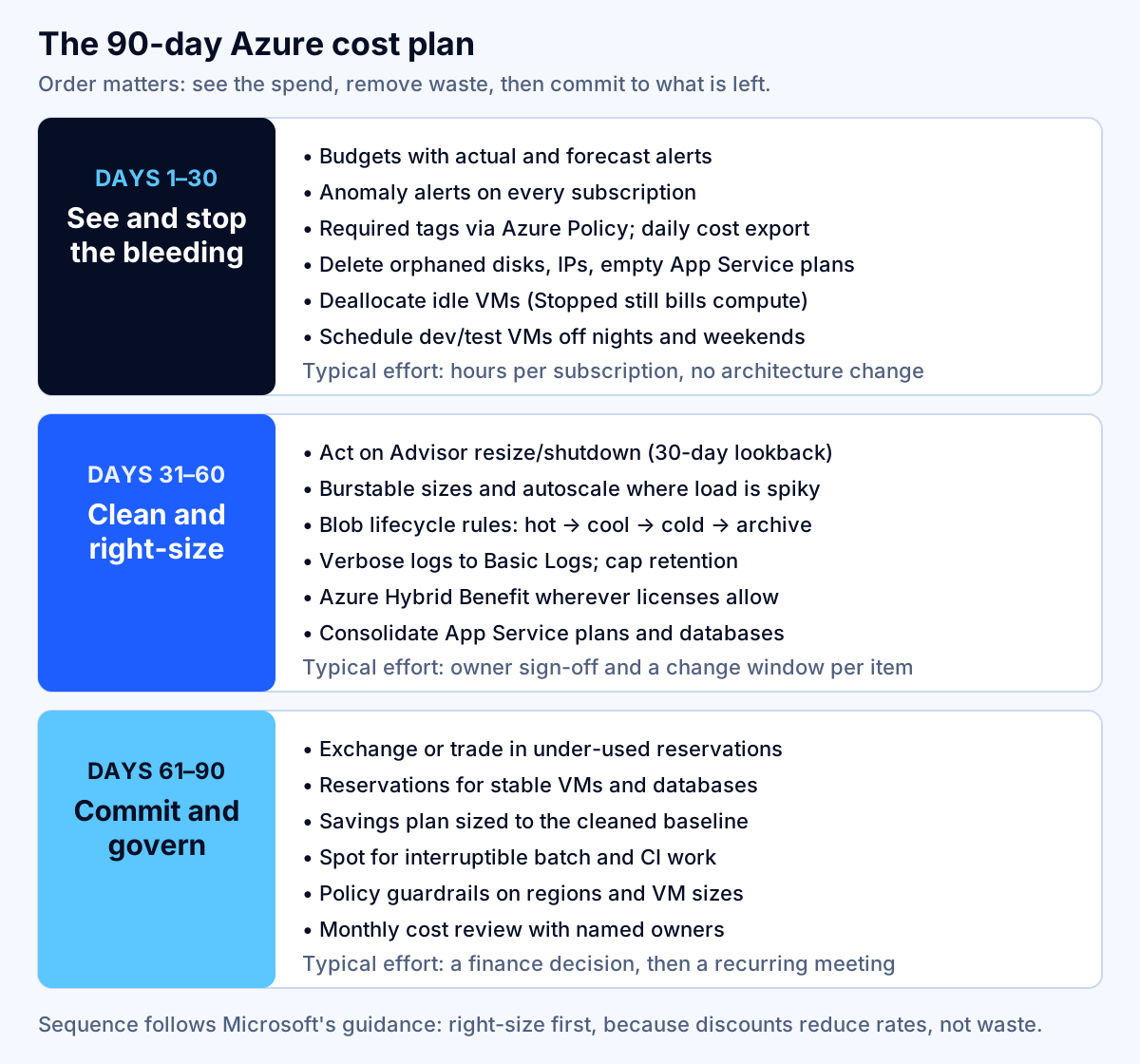
An Azure cost optimization checklist only works if you run it in the right order. Most published checklists are a flat list of 30 tips, and teams pick the easy-looking ones first: they buy a three-year reservation for a VM that should have been deleted, or they archive data that gets read every month and pay retrieval fees on top. The order that saves money is the one Microsoft itself now recommends: see where the money goes, remove waste, right-size, and only then commit to discounts on what is left.
This article turns that order into a 90-day plan for a mid-market company — one with a handful of Azure subscriptions, a small platform or IT team, and no full-time FinOps staff. Each phase lists what to do, which native Azure tool does it, and the trap that catches people. Prices are Microsoft list prices for East US, pulled from the Azure Retail Prices API in October 2026. Your negotiated rates and region will differ, so treat the numbers as a model to compare your own bill against, not a quote.
Key takeaway: Discounts reduce rates, not waste. Spend the first 60 days shrinking the baseline, then commit to what remains. Buying commitments first locks in waste for one to three years.
Why Azure bills drift up even when nothing seems to change
Cloud waste is not a beginner's problem. In Flexera's 2026 State of the Cloud survey of more than 750 cloud decision-makers, respondents estimated that 29% of their cloud spend was wasted — the first increase in five years, which Flexera attributes largely to AI workloads and newer platform services. The same survey found 79% of enterprises running active workloads on Azure. The FinOps Foundation's State of FinOps 2026, with 1,192 respondents, still ranks workload optimization and waste reduction as the top current priority for FinOps teams.
On Azure, drift usually comes from five places:
- Resources that outlive their purpose. A VM gets deleted but its managed disk and public IP stay. An App Service plan keeps billing after its last app is removed.
- "Stopped" that is not really stopped. Shutting a VM down from inside Windows or Linux leaves it allocated and billed for compute.
- Sizes chosen once, never revisited. The VM sized for a launch-week peak runs at 8% CPU for two years.
- Defaults that favor convenience. New blobs land in the hot tier, logs land in the most expensive table plan, and diagnostic settings send everything everywhere.
- Commitments that no longer match. A reservation bought for a VM family the team has since moved off quietly goes unused.
None of these show up as a spike. They show up as a bill that is a little higher every quarter, which is why a fixed review cadence matters more than any single tool.
What a single VM really costs under each pricing option
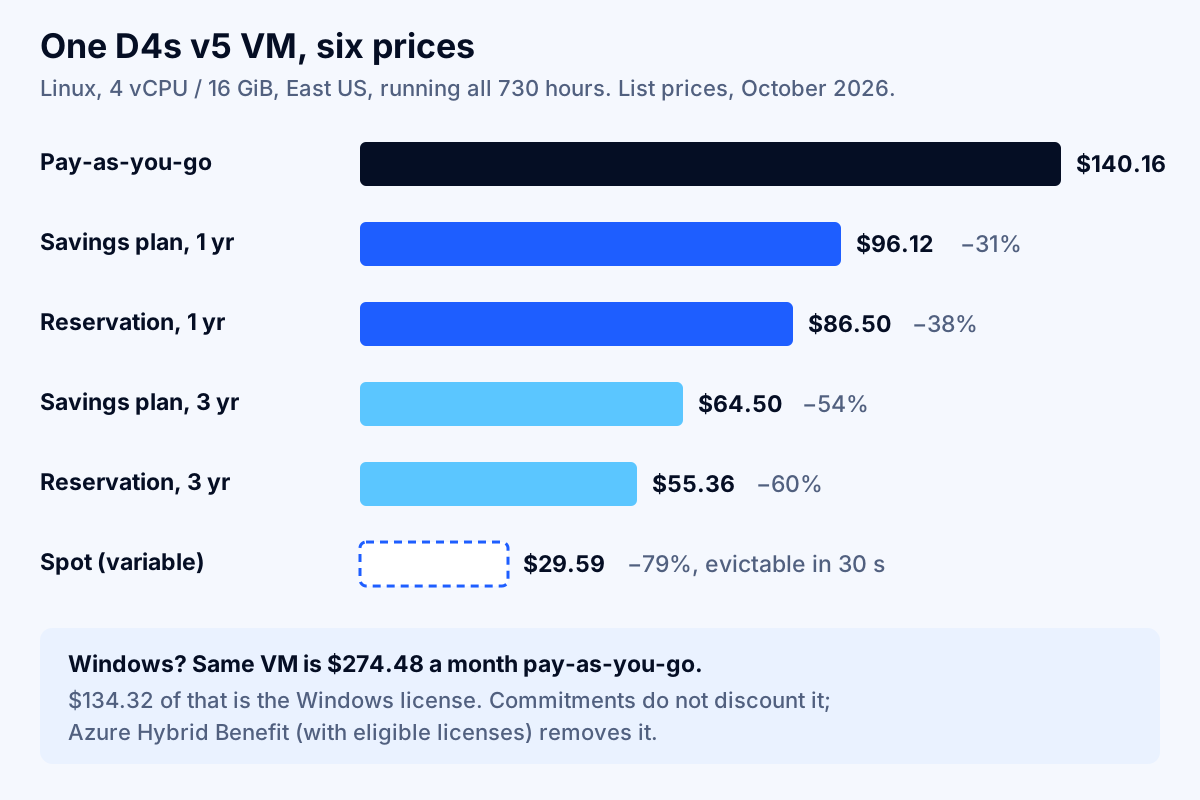
Before the checklist, it helps to see how much the pricing model alone moves the number. The figure below uses one general-purpose D4s v5 Linux VM (4 vCPU, 16 GiB of memory) in East US, running all 730 hours of a month.
| Pricing option | Hourly or term price | Monthly equivalent | vs. pay-as-you-go | Breaks even if the VM runs at least |
|---|---|---|---|---|
| Pay-as-you-go | $0.192/hour | $140.16 | — | — |
| Savings plan, 1 year | $0.1317/hour | $96.12 | −31% | 69% of hours |
| Reservation, 1 year | $1,038/year | $86.50 | −38% | 62% of hours |
| Savings plan, 3 years | $0.0884/hour | $64.50 | −54% | 46% of hours |
| Reservation, 3 years | $1,993/3 years | $55.36 | −60% | 40% of hours |
| Spot (variable) | $0.0405/hour | $29.59 | −79% | n/a, can be evicted |
The break-even column is the part most checklists skip. A one-year reservation for this VM only pays off if the VM would otherwise run at least 62% of the hours in the year. A dev box that is already scheduled off at night and on weekends runs about 30% of hours, so reserving it would cost more than leaving it on pay-as-you-go. This is why scheduling comes before commitments in the plan below.
The Windows version of the same VM is $0.376 an hour, or $274.48 a month. Of that, $134.32 is the Windows license, and reservations and savings plans do not discount it. Microsoft states that a VM reservation "doesn't cover additional software, Windows, networking, or storage charges." Azure Hybrid Benefit, covered in phase two, is what removes the license portion.
Days 1–30: see the spend and stop the obvious bleeding
The first month needs no architecture changes and no purchases. It needs access to Cost Management, Azure Advisor and Azure Policy at the subscription or management-group level, plus a list of who owns what.
1. Set budgets with both actual and forecast alerts
Create a budget for every subscription and for any resource group that maps to a product or team. Configure at least two thresholds: an actual-cost alert (say 80% and 100%) and a forecast alert (say 100%) so you hear about a trend before the money is spent.
Understand what a budget is not. Microsoft's budget documentation is explicit: when a threshold is met, "resources aren't affected, and your consumption isn't stopped." Cost data typically arrives within 8 to 24 hours, budgets are evaluated against it every 24 hours, and emails go out within an hour of evaluation. So a budget alert can arrive a day or more after the spend. If you want an automatic response, a subscription or resource-group budget can trigger an action group that runs a runbook or function, for example to deallocate VMs tagged as dev.
2. Turn on anomaly alerts for every subscription
Cost anomaly detection is free and runs per subscription. Microsoft's anomaly documentation describes how it compares each day's usage to a forecast built from the previous 60 days and runs 36 hours after the end of the day (UTC). Alert rules can only be created at subscription scope, with a limit of five per subscription, and each alert email is sent once, at detection.
Two practical points. First, a brand-new subscription can take up to 48 hours before Cost Management features are available, so add alerts to your subscription-creation checklist. Second, send alerts to a shared mailbox or channel that someone triages, not to the person who happened to set them up. Microsoft notes alerts are sent based on the rule creator's current access, so an alert created by someone who later changes roles can silently stop.
3. Require ownership tags with Azure Policy
You cannot fix what nobody owns. Pick three tags — owner, environment (prod, staging, dev) and cost center or product — and enforce them with Azure Policy so new resources cannot be created without them. Microsoft's Cost Management best practices recommend tags plus policy for exactly this, and tags become filters in cost analysis immediately.
For existing resources, start with an "inherit tag from resource group" policy and a one-off cleanup sprint. Do not aim for 100% coverage in week one; aim for every resource above a meaningful monthly cost having an owner.
4. Export cost data daily
Schedule a daily cost export to a storage account. The portal is fine for browsing, but an export gives you history, lets finance build reports without portal access, and is the input for any tool you add later. Microsoft notes that open-month cost data refreshes about every four hours and billed charges are typically available within 72 hours after the invoice, so reconcile against the export, not against a mid-month screenshot.
5. Delete orphaned resources
This is usually the fastest money. Look for:
- Unattached managed disks. A 128 GiB Premium SSD (P10) costs $19.71 a month in East US whether or not anything is attached; a Standard SSD of the same size (E10) is $9.60.
- Unassociated public IP addresses. A standard static IPv4 address is $0.005 an hour, about $3.65 a month each.
- Empty App Service plans. Microsoft's App Service cost guide warns that when you delete all apps in a plan, "the plan continues to accrue charges." Delete the plan or scale it to the Free tier.
- Leftovers of deleted workloads: old snapshots, storage accounts that held backups or diagnostic logs, Log Analytics workspaces nobody queries, and unexpired reservations for things you no longer run.
Advisor flags some of these, and an Azure Resource Graph query for disks with no managed-by value finds the rest in minutes. Take a snapshot or confirm with the owner before deleting anything in production.
6. Deallocate, do not just stop
Azure's VM states documentation lists the plain Stopped state — what you get when you shut down from inside the guest OS — as billed. Only Stopped (deallocated) releases the host and stops compute billing, and even then disks and networking keep charging. Use the portal's Stop button, the CLI's az vm deallocate, or an auto-shutdown schedule, all of which deallocate.
7. Schedule dev and test off nights and weekends
A VM that runs 10 hours a day, five days a week runs about 217 hours a month instead of 730. For the D4s v5 above, that is roughly $41.60 instead of $140.16, a saving of about $98 a month per machine before any commitment. Use VM auto-shutdown for the simple case and Azure Automation or Logic Apps for start-and-stop schedules. Combine it with tags so the schedule follows the environment tag rather than a hand-maintained list.
If your developers have Visual Studio subscriptions, look at Azure Dev/Test pricing for non-production subscriptions. Windows VMs there bill at Linux rates — the Retail Prices API lists the D4s v5 Windows dev/test rate at $0.192 an hour, the same as Linux — but the resources are limited to development and testing, and dev/test subscriptions carry no SLA for most services.
Key takeaway: Phase one is about visibility and hygiene. By day 30 every subscription should have a budget, an anomaly alert, enforced ownership tags and a daily export, and the obvious orphans should be gone.
Days 31–60: right-size and clean up the architecture
The second month changes running resources, so every item needs an owner's sign-off and a change window. This is where most of the durable savings come from.
8. Act on Advisor resize and shutdown recommendations, carefully
Azure Advisor recommends shutting down VMs that show essentially no use — for example, P95 CPU under 3% and outbound network under 2% — and resizing VMs whose load would fit a cheaper size. For user-facing workloads it targets P95 CPU of 40% or lower on the recommended size; for non-user-facing ones, 80%. It also suggests burstable B-series sizes for VMs with low average CPU and occasional spikes.
Three adjustments make these recommendations safer:
- Lengthen the lookback. The default is seven days. Advisor supports 7, 14, 21, 30, 60 and 90 days; use 30 or more for production so a quiet week or a holiday does not drive a resize.
- Discount the savings estimate. Microsoft says Advisor's savings use retail rates and do not account for reservations or savings plans you already hold. A cross-family resize can even increase cost if it moves a VM off a reservation.
- Check memory and disk, not just CPU. Shutdown recommendations ignore memory. Confirm with the owner before you act on a VM that holds state.
9. Use autoscale and burstable sizes where load is uneven
Fixed fleets sized for peak are the most common form of over-provisioning. Virtual machine scale sets and App Service plans at Standard tier and above support autoscale on schedules and metrics. Microsoft's App Service guidance also notes that Premium v3 plans give higher density per instance, which can lower the instance count for the same set of apps. Consolidating several lightly used App Service plans onto fewer, larger ones is often the cheapest change of all.
10. Add blob lifecycle rules
New blobs go to the hot tier by default. For data that is written once and rarely read — logs, exports, backups, old media — lifecycle management rules can move it automatically. East US list prices per GB-month for locally redundant storage, and what that means for 10 TB:
| Tier | Price per GB-month | 10 TB per month | Minimum days before an early-deletion charge |
|---|---|---|---|
| Hot | $0.0208 | $212.99 | none |
| Cool | $0.0152 | $155.65 | 30 |
| Cold | $0.0036 | $36.86 | 90 |
| Archive | $0.00099 | $10.14 | 180 |
The catch is in the last column and in access fees. Microsoft's access tier documentation explains that deleting or moving a blob before the minimum period triggers a prorated early-deletion charge, that read and retrieval charges rise as tiers get cooler, and that archived data is offline and can take up to 15 hours to rehydrate. Archive also is not supported on zone-redundant accounts. Tier data by how it is actually read, not by its age alone. Microsoft has also introduced a smart tier that moves data between hot, cool and cold automatically based on access patterns, which is worth evaluating for data with unpredictable reads.
11. Put logs on the right plan and retention
Log Analytics is a frequent surprise because every diagnostic setting adds ingestion. Microsoft's Azure Monitor Logs cost guide describes three table plans. In East US, the Retail Prices API lists Analytics Logs ingestion at $2.30 per GB after the first 5 GB a month, with 31 days of retention included, and Basic Logs ingestion at $0.50 per GB, with queries billed by data scanned. At 10 GB a day — about 304 GB a month — that is roughly $699 a month on Analytics Logs against about $152 on Basic Logs before query charges.
Practical steps:
- Find your largest tables with the workspace's Usage and estimated costs view, then trim noisy diagnostic categories at the source.
- Move high-volume, rarely queried tables (verbose application traces, firewall and flow logs you keep for investigations) to Basic or Auxiliary Logs.
- Set retention per table. Extra retention beyond the included period costs $0.10 per GB-month in East US, and Microsoft notes that purging data does not reduce retention charges; only shorter retention does.
- Consider a commitment tier only above 100 GB a day of Analytics Logs ingestion; Microsoft says tiers save as much as 30% but lock you in for 31 days.
12. Apply Azure Hybrid Benefit wherever licenses allow
If your company owns Windows Server or SQL Server licenses with Software Assurance or qualifying subscriptions, Azure Hybrid Benefit lets you stop paying for the Windows license on Azure VMs. For the D4s v5 example that is $134.32 a month per VM. Turning it on changes a licensing flag and does not restart the VM.
The requirements matter: at least 8 core licenses per VM even for a 4-core VM, and the benefit only runs while the Software Assurance or subscription term is active. Microsoft's cost guidance also says SQL Server licensees can save up to 55% on vCore-based SQL Database options. Licensing terms take precedence over any article, including this one, so confirm with whoever manages your Microsoft agreement before enabling it fleet-wide.
13. Watch data transfer
Azure's bandwidth pricing gives the first 100 GB of internet egress each month free, then charges $0.087 per GB for the next 10 TB from North America on the Microsoft network. Transfer between regions within North America is $0.02 per GB; transfer within the same availability zone is free. Chatty services split across regions, backups copied to a second region daily, and large downloads served directly from storage instead of a CDN are the usual culprits.
Key takeaway: Phase two is where savings become permanent, because you are changing what runs, not what you pay per hour. Every change in this phase also makes your eventual commitment smaller and safer.
Days 61–90: commit to the cleaned baseline and govern it
Only now, with waste removed and sizes corrected, should you buy discounts. Microsoft's own guidance on choosing between savings plans and reservations lays out the sequence: right-size first, exchange under-used reservations, trade in reservations that no longer fit for savings plans, buy new reservations for stable workloads, and add new savings plans last. It puts the reason plainly: "Discounts reduce rates, not waste."
14. Fix existing commitments before buying new ones
Open the Reservations blade and sort by utilization. A reservation running well below 100% can be exchanged for another reservation of the same type, or traded in for a savings plan. If you no longer need it at all, reservations can be refunded up to $50,000 in a rolling 12-month window across your agreement.
15. Buy reservations for stable, always-on resources
Reservations give the deepest discount — up to 72% according to Microsoft — but they apply to a specific product, size family and region. Good candidates are production VMs and databases that have run all month for the past several months and have no planned migration. Reservations also exist for Azure SQL Database, Cosmos DB, Redis, App Service Premium v3, Blob and Files capacity, Premium SSD disks of P30 and larger, and more. Advisor's reservation recommendations are based on recent usage; check them against your roadmap before you buy.
16. Add a savings plan sized to the remainder
A savings plan is a commitment to spend a fixed dollar amount per hour for one or three years, with discounts Microsoft puts at up to 65% off pay-as-you-go. Azure applies it each hour to eligible usage, starting with the usage that gets the highest discount, and any unused commitment for that hour expires. Microsoft now offers two: a savings plan for compute (VMs, App Service, Functions Premium, Container Instances, Container Apps and others) and a newer savings plan for databases (Azure SQL, PostgreSQL, MySQL, Cosmos DB and SQL Server hourly licenses).
Three cautions. Savings plan purchases cannot be canceled or refunded. Microsoft states that savings plan prices, like pay-as-you-go prices, are subject to change, and that current savings plan pricing is used when the benefit is applied regardless of when you bought the plan. And when both apply, Azure applies reservation benefits first, so size the savings plan to the hourly spend that reservations do not cover. Commit to the floor of your hourly usage, not the average.
17. Use Spot for work that can be interrupted
Azure Spot VMs run on spare capacity at a steep discount — the D4s v5 Linux Spot price was $0.0405 an hour in October 2026, 79% below pay-as-you-go — but Azure can evict them with 30 seconds' notice and there is no SLA. Use them for batch jobs, CI runners, rendering and test environments that can restart. Check the portal's eviction-rate history for the size and region before you commit a pipeline to it.
18. Put guardrails in policy, not in a wiki
Azure Policy can restrict allowed regions and VM sizes, require tags, and deny expensive SKUs in dev subscriptions. These rules cost nothing to run and prevent the next round of drift. The Well-Architected Framework's cost optimization checklist calls these spending guardrails and recommends platform automation over manual processes.
19. Start a monthly cost review
The plan ends with a meeting, because savings decay without one. Once a month, review spend against budget by owner, open anomalies, Advisor recommendations, reservation and savings plan utilization, and the top ten resources by cost. Keep it to 30 minutes with named owners and a short action list. The Well-Architected checklist's first item is a culture of financial responsibility; in a mid-market company, that is this meeting.
The complete Azure cost optimization checklist
Use this as a working list. The "Tool" column names the native Azure feature that does the job, so nothing here requires a purchase.
| # | Item | Phase | Tool | Owner |
|---|---|---|---|---|
| 1 | Budgets with actual and forecast alerts per subscription | Days 1–30 | Cost Management budgets | Finance + platform |
| 2 | Anomaly alerts on every subscription | Days 1–30 | Cost Management alerts | Platform |
| 3 | Required owner, environment and cost-center tags | Days 1–30 | Azure Policy | Platform |
| 4 | Daily cost export to storage | Days 1–30 | Cost Management exports | Platform |
| 5 | Delete orphaned disks, IPs, empty plans, old snapshots | Days 1–30 | Advisor, Resource Graph | Resource owners |
| 6 | Deallocate idle VMs instead of guest shutdown | Days 1–30 | Portal, CLI, auto-shutdown | Resource owners |
| 7 | Schedule dev/test VMs; use Dev/Test pricing if eligible | Days 1–30 | Auto-shutdown, Automation | Engineering |
| 8 | Resize or shut down per Advisor, 30+ day lookback | Days 31–60 | Azure Advisor | Resource owners |
| 9 | Autoscale and burstable sizes; consolidate App Service plans | Days 31–60 | Scale sets, App Service | Engineering |
| 10 | Blob lifecycle rules by actual read pattern | Days 31–60 | Lifecycle management | Data owners |
| 11 | Log table plans and per-table retention | Days 31–60 | Log Analytics | Platform |
| 12 | Azure Hybrid Benefit where licenses allow | Days 31–60 | VM licensing setting | IT + licensing |
| 13 | Find cross-region and internet egress hot spots | Days 31–60 | Cost analysis by meter | Engineering |
| 14 | Exchange, trade in or refund under-used reservations | Days 61–90 | Reservations blade | Finance + platform |
| 15 | Reservations for stable VMs and databases | Days 61–90 | Reservations | Finance |
| 16 | Savings plan sized to the uncovered hourly floor | Days 61–90 | Savings plans | Finance |
| 17 | Spot for interruptible work | Days 61–90 | Spot VMs, scale sets | Engineering |
| 18 | Policy guardrails on regions, sizes and SKUs | Days 61–90 | Azure Policy | Platform |
| 19 | Monthly 30-minute cost review with owners | Ongoing | Cost analysis, Advisor | Everyone above |
How to find what changed when the bill jumps
The checklist prevents drift; it does not diagnose a sudden spike. When a bill jumps, work from the top down in cost analysis. Set the view to daily costs over the last 30 days and group by subscription, then resource group, then resource, then meter. Microsoft's anomaly guide walks through exactly this path and recommends the Activity log and Resource Graph's change history to find who changed what.
Two habits make this faster. Always end at the meter, because the meter name tells you the actual charge — a VPN gateway SKU change, a disk tier upgrade, a log table — where the service name does not. And remember that a change made mid-day shows its full cost only on the following full day, so look at the two days around the jump, not one. If you also run workloads on AWS, our guide to why an AWS bill is higher than expected covers the same triage with AWS tools.
What about AI workloads on Azure?
Flexera links the 2026 rise in waste to AI, and Azure OpenAI and AI Foundry deployments add cost lines that VM-focused checklists miss: per-token charges, provisioned throughput units billed hourly whether or not they are used, vector search indexes, and the logging that goes with them. The same order applies: measure tokens per request and per feature, cut waste such as oversized prompts and unused provisioned deployments, then commit. Our guide to LLM API cost optimization ranks the levers for token spend, and our comparison of AWS Bedrock, Azure OpenAI and Google Vertex AI covers how each platform prices models.
When this checklist is not enough
Native tools take most mid-market companies a long way, but four situations call for more:
- The waste is architectural. If the big lines are data moving between regions, a database sized for a workload it no longer has, or an application that cannot scale down, savings require engineering work, not settings.
- Commitments span many subscriptions and teams. Shared reservations and savings plans across business units need an allocation model, or one team's discount hides another team's waste.
- You need unit economics. Cost per customer, per transaction or per AI request requires joining cost exports to business data, which the portal does not do.
- Nobody has the time. The most common reason the plan stalls is not tooling; it is that the platform team is busy shipping.
If you are in one of those situations, the cloud cost optimization team at Fleurant AI can run the assessment with you, starting from a free discovery call. Whether you do it yourself or with help, the order is the same: see the spend, remove the waste, then commit. If you want a second pair of eyes on your plan, talk to a specialist.
Frequently asked questions
What is the fastest way to reduce an Azure bill?
Remove what nobody uses before changing anything else. Delete orphaned managed disks and public IPs, delete App Service plans that no longer host apps (they keep billing), and deallocate idle VMs rather than shutting them down from inside the operating system, because a VM in the plain Stopped state is still billed for compute. Then put dev and test VMs on a schedule. None of this needs an architecture change, and it shrinks the baseline before you buy any commitment.
Should I buy Azure reservations or a savings plan?
Use both, in that order, after right-sizing. Reservations give the deepest discount but lock a VM size family and region; buy them for stable machines that run all month. A savings plan for compute is a dollar-per-hour commitment that follows usage across regions and services, so it suits the variable remainder. Microsoft's own sequence is right-size, fix existing commitments, buy reservations, then add a savings plan sized to the cleaned baseline. Savings plans cannot be canceled or refunded.
Does an Azure budget stop spending when it is exceeded?
No. Microsoft states that when a budget threshold is met, resources aren't affected and consumption isn't stopped. Budgets are evaluated about every 24 hours against cost data that typically arrives within 8 to 24 hours, so an alert can land a day or more after the spend. Budgets can call an action group that runs automation, such as stopping tagged dev VMs, but that is something you build. Only credit-based subscriptions have a hard spending limit.
Why am I still paying for a stopped Azure VM?
There are two reasons. If the VM shows Stopped rather than Stopped (deallocated), it still holds its host and is billed for compute; this happens when you shut down from inside Windows or Linux. Even when it is deallocated, its managed disks and any standard public IP keep billing. A 128 GiB Premium SSD (P10) is $19.71 a month in East US and a standard static public IPv4 address is $0.005 an hour, about $3.65 a month.
How much can Azure Hybrid Benefit save?
On a Windows VM, Hybrid Benefit removes the Windows license portion of the hourly rate. For a D4s v5 in East US that portion is $0.184 an hour, or $134.32 a month per VM, nearly half of the $274.48 pay-as-you-go price. You need Windows Server core licenses with active Software Assurance or qualifying subscription licenses, at least 8 core licenses per VM. Confirm eligibility with your licensing advisor before you flip the switch.
Are Azure Advisor savings estimates accurate?
Treat them as an upper bound. Microsoft notes that Advisor's estimated savings use retail rates, ignore your negotiated discounts and do not account for reservations or savings plans you already own. Resizing a VM into a different family can even raise costs if it moves the VM off a reservation. Advisor's default lookback is seven days; set it to 30 days or longer for production workloads so a quiet week does not trigger a bad resize.
Is it worth paying a consultant or a tool for Azure cost optimization?
Do the first 30 days yourself: budgets, anomaly alerts, tags, cleanup and schedules use free native tools and need no outside help. Outside help earns its keep in the later phases, when savings depend on architecture (data movement, scaling design, database consolidation) or on commitment strategy across many subscriptions, where a wrong purchase is locked in for one or three years. Ask any vendor to show the baseline and the method before you agree to a fee.
Sources
- Design review checklist for Cost Optimization, Microsoft Azure Well-Architected Framework
- Optimize your cloud investment with Cost Management, Microsoft Learn
- Tutorial: Create and manage budgets, Microsoft Learn
- Identify anomalies and unexpected changes in cost, Microsoft Learn
- States and billing status of Azure Virtual Machines, Microsoft Learn
- Optimize VM or VMSS spend by resizing or shutting down underutilized instances, Azure Advisor, Microsoft Learn
- What are Azure Reservations?, Microsoft Learn
- What are savings plans?, Microsoft Learn
- How a savings plan discount is applied, Microsoft Learn
- Decide between a savings plan and a reservation, Microsoft Learn
- Explore Azure Hybrid Benefit for Windows VMs, Microsoft Learn
- About Azure Spot Virtual Machines, Microsoft Learn
- Access tiers for blob data, Microsoft Learn
- Azure Monitor Logs cost calculations and options, Microsoft Learn
- Plan and manage costs for App Service, Microsoft Learn
- Azure Retail Prices REST API overview, Microsoft Learn
- Bandwidth pricing, Microsoft Azure
- Azure Dev/Test pricing, Microsoft Azure
- Flexera finds cloud value is rising while AI waste grows (2026 State of the Cloud), Flexera
- State of FinOps 2026, FinOps Foundation


